
Angular Deployment on AWS: The Ultimate S3 + CloudFront Guide with CDK
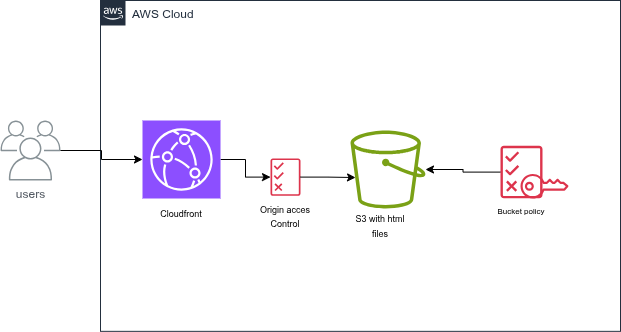
Deploying an Angular Single Page Application (SPA) on AWS doesn’t have to be complicated. Forget manual console configuration; we are going to build a Serverless infrastructure, secured by OAC and optimized by CloudFront, all without depending on Route 53.
Tutorial Objectives
- Organize a global project structure (Frontend + Infra).
- Create a private S3 bucket for storage.
- CConfigure CloudFront for HTTPS and Angular routing.
- Deploy everything with a single command.
Prerequisites
Before starting, you will need:
- Node.js
- Configured AWS CLI:
aws configure- AWS CDK installed::
npm install -g aws-cdk- An active AWS account
- Angular CLI installed
1. Project Structure
For clean management, we will group the application and the infrastructure into a single root folder. This “Monorepo” approach is a best practice.
/host-anglar-app
├── /frontend          --------------> Application Angular
└── /infrastructure --------------> Code AWS CDKCreate the folders and the Frontend
mkdir host-anglar-app && cd host-anglar-app
# creation de l'application angular
ng new frontendInitialize the Infrastructure
mkdir infrastructure && cd infrastructure
# Initialisation du CDK
cdk init app --language typescript2. Le code de l’Infrastructure (CDK)
Open infrastructure/lib/infrastructure-stack.ts. This script creates the S3 bucket and the CloudFront distribution. It also automatically handles security so that only CloudFront can access your S3 files.
import * as cdk from 'aws-cdk-lib/core';
import { Construct } from 'constructs';
import * as s3 from 'aws-cdk-lib/aws-s3';
import * as cloudfront from 'aws-cdk-lib/aws-cloudfront';
import * as s3deploy from 'aws-cdk-lib/aws-s3-deployment';
import * as origins from 'aws-cdk-lib/aws-cloudfront-origins';


export class InfrastructureStack extends cdk.Stack {
  constructor(scope: Construct, id: string, props?: cdk.StackProps) {
    super(scope, id, props);
    // S3 bucket to host the Angular app
    const bucket = new s3.Bucket(this, "AngularAppBucket", {
      removalPolicy: cdk.RemovalPolicy.DESTROY,
      autoDeleteObjects: true,
      blockPublicAccess: s3.BlockPublicAccess.BLOCK_ALL,
      bucketName: 'angular-app-bucket-example-123456' // Change to a globally unique name
    });

    // CloudFront distribution to serve the Angular app
    const distribution = new cloudfront.Distribution(this, "AngularAppDistribution", {
      defaultBehavior: {
        origin: origins.S3BucketOrigin.withOriginAccessControl(bucket),
        viewerProtocolPolicy: cloudfront.ViewerProtocolPolicy.REDIRECT_TO_HTTPS,
      },
      defaultRootObject: "index.html",
      // Ajoutez ceci pour gérer le rafraîchissement des pages Angular
      errorResponses: [
        {
          httpStatus: 403,
          responseHttpStatus: 200,
          responsePagePath: '/index.html',
        },
      ],
    });

    // Deploy the Angular app to the S3 bucket
    new s3deploy.BucketDeployment(this, "DeployAngularApp", {
      sources: [s3deploy.Source.asset("../frontend/dist/frontend/browser")],
      destinationBucket: bucket,
      distribution,
      distributionPaths: ["/*"],
    });

    // Output the CloudFront distribution domain name
    new cdk.CfnOutput(this, "DistributionDomainName", {
      value: distribution.domainName,
    });

  }
}3. One-Click Deployment
To automate the build and deployment, we will create a custom command. In the infrastructure folder, we add a script to package.json:
"deploy:all": "cd frontend && ng build && cd ../infrastructure && cdk deploy"Now, a single command is enough:
npm run deploy:all
https://xxxxxxxxxxx.cloudfront.net/

4. Pointing your domain (Without Route 53) - Bonus
If you already have a domain with OVH, GoDaddy, or another provider, simply create a CNAME record:
- Name: www (or your sub-domain)
- Value: d123.cloudfront.net (the URL obtained previously)
Important
For HTTPS with your own domain, you will need to create a certificate in AWS Certificate Manager (ACM). However, for starters, the default CloudFront URL works perfectly in HTTPS.
5.Nettoyer
To stop incurring costs once your tests are finished:
cdk destroyConclusion In this article, we have:
- Created and configured a private and secure S3 storage.
- Configured a CloudFront CDN for global performance.
- projet gitlab front
- projet gitlab infrastructure

Comments